How to Use a RAM Upgrade Compatibility Checker for Better PC Performance?

A RAM upgrade compatibility checker is the safest way to ensure your new memory will work before you spend money. These tools analyze your system and recommend compatible modules, preventing costly mistakes that leave you with incompatible hardware. Whether you are upgrading a laptop or desktop, using the right checker saves time and guarantees your upgrade succeeds.
Why RAM Compatibility Matters More Than Ever?
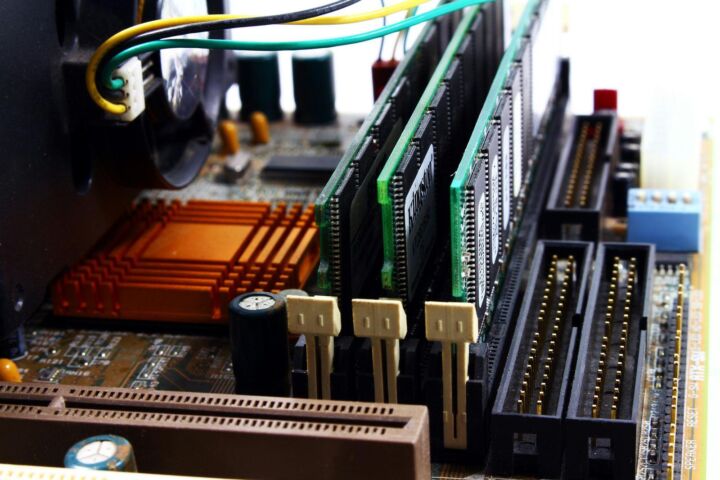
Buying the wrong RAM is one of the easiest ways to waste money on a PC upgrade. According to Crucial, RAM generations are not forward or backward compatible, meaning DDR4 modules will not fit in DDR5 slots and vice versa . The physical differences include pin counts, notch positions, and voltage requirements that make mixing generations impossible.
Modern CPUs also dictate what memory you can use. Intel 12th Gen processors and newer support DDR5, while AMD Ryzen 7000 series requires AM5 motherboards that only accept DDR5 . Older systems are typically limited to DDR4. This split means you must verify your exact hardware before purchasing any memory upgrade.
How to Check RAM Compatibility Using Built-in Tools?
You do not need to download anything to start checking RAM compatibility. Windows includes built-in tools that reveal your current memory type, motherboard model, and CPU specifications. These native utilities provide enough information to determine which RAM generation your system supports and whether an upgrade is possible.
1. Using Windows System Information
The fastest way to check your current RAM is through Windows built-in tools. Press Windows Key plus R, type msinfo32, and press Enter. Look for BaseBoard Product to find your motherboard model and Processor to see your CPU . This information tells you which generation of RAM your system supports.
You can also open Task Manager by pressing Ctrl plus Shift plus Esc, then click the Performance tab and select Memory. This shows your current RAM type, speed, and how many slots are occupied . If it shows DDR4, you cannot install DDR5 modules even if they are faster or cheaper.
2. Using CPU-Z for Detailed Analysis
CPU-Z is free software that provides deeper insight into your memory configuration. Download it from a trusted source and check the Memory tab for your exact type and speed. The SPD tab shows what is physically installed in each slot, including manufacturer details and part numbers .
This tool is especially useful if you bought a used PC and do not know what memory is inside. It reveals hidden specifications that Windows does not display, helping you match new modules perfectly with existing ones.
Best Third-Party RAM Compatibility Checkers
Third-party tools offer deeper analysis and specific product recommendations that built-in utilities cannot provide. These dedicated RAM compatibility checkers scan your hardware directly and cross-reference databases containing millions of system configurations. Whether you want automated suggestions or detailed technical verification, these tools eliminate guesswork and ensure your upgrade purchase works perfectly.
1. Crucial System Scanner
The Crucial System Scanner is a free downloadable tool that analyzes your computer’s BIOS to recommend compatible upgrades. According to Crucial, millions of users have trusted this scanner to safely recommend memory based on system configurations, and it cannot access personal data .
To use it, visit Crucial’s website, download the small executable file, and run it. Within seconds, you will see a complete list of compatible memory and storage upgrades for your specific system. The tool works for laptops, desktops, and even some gaming consoles .
2. Corsair Compatibility Tool
Corsair offers a web-based RAM compatibility tool where you enter your motherboard or system model to see compatible memory options . This is helpful if you are building a new PC and want to verify compatibility before purchasing components.
3. Manufacturer QVL Lists
For the most technical verification, check your motherboard’s Qualified Vendor List. According to ASUS, this list shows memory kits tested directly by the manufacturer for best stability . To find it, search for your motherboard model on the manufacturer’s support site and look for Memory QVL or CPU Memory Support sections.
Key Compatibility Factors to Verify
Buying compatible RAM requires checking more than just the generation label on the box. Several technical factors determine whether new memory will work properly with your specific motherboard and processor. Understanding these key compatibility points prevents costly returns and ensures your upgrade delivers the performance boost you expect.
| Factor | What to Check | Why It Matters |
|---|---|---|
| RAM Generation | DDR4 vs DDR5 | Physical incompatibility prevents installation |
| Form Factor | DIMM vs SO-DIMM | Desktop vs laptop size differences |
| Speed Rating | MHz rating | Faster RAM downclocks to motherboard limits |
| Maximum Capacity | Per slot and total | Exceeding limits causes instability |
| Voltage | 1.2V for DDR4, 1.1V for DDR5 | Mismatch can damage components |
Step-by-Step Compatibility Check Process
Following a systematic process ensures you do not miss critical compatibility checks before purchasing RAM. Each step builds on the previous one, moving from basic system identification to detailed technical verification. This methodical approach protects you from common mistakes and guarantees your upgrade succeeds on the first attempt.
- Identify your system model using msinfo32 or by checking the label on your laptop or motherboard box
- Determine current RAM type through Task Manager or CPU-Z to see if you have DDR4 or DDR5
- Check available slots to see if you can add modules or must replace existing ones
- Verify maximum supported speed because installing faster RAM wastes money if your motherboard caps it lower
- Use a compatibility checker like Crucial System Scanner to generate a specific list of working modules
- Cross-reference with QVL if you want maximum stability assurance for high-end builds
Common Compatibility Mistakes to Avoid
Even experienced builders make compatibility errors that turn simple upgrades into frustrating returns. Understanding these common mistakes before you shop helps you avoid wasted money and potential hardware damage. Learning from others’ failures saves time and ensures your RAM upgrade goes smoothly from purchase to installation.
1. Mixing RAM Generations
DDR4 and DDR5 are physically incompatible due to different pin layouts and notch positions . Attempting to force a DDR4 module into a DDR5 slot will not work and could damage your hardware. The voltage difference, 1.2V for DDR4 versus 1.1V for DDR5, creates electrical incompatibility even if you could physically insert the wrong module .
2. Ignoring Form Factor Differences
Laptops use SO-DIMM modules that are approximately 2.66 inches long, while desktops use standard DIMM modules at roughly 5.25 inches . These are not interchangeable, and no adapter exists to convert between them. Always verify you are buying the correct size for your system type.
3. Buying Mismatched Kits
While you can technically mix RAM brands, it is not recommended. According to KingSpec, mixing brands or speeds can cause systems to drop out of dual-channel mode, reducing memory bandwidth by 35 to 45 percent . For best results, purchase matched kits from the same manufacturer rather than adding random sticks to existing memory.
Frequently Asked Questions (FAQs)
Many users have specific concerns about RAM compatibility checkers that deserve clear answers. These frequently asked questions address accuracy concerns, trust issues, hardware limitations, and performance expectations. Understanding these points helps you use compatibility tools more effectively and make confident upgrade decisions.
1. Are free compatibility checkers accurate?
Yes, tools like the Crucial System Scanner are highly accurate because they read your system’s BIOS directly rather than relying on user input . However, no tool is perfect. Cross-checking with manufacturer QVL lists provides extra assurance for critical workstations.
2. Can I trust online compatibility databases?
Reputable manufacturers maintain extensive databases covering over 100,000 systems . These are generally reliable for standard configurations, but custom builds or rare laptop models may need manual verification using CPU-Z and QVL lists.
3. What if my laptop has soldered RAM?
Many modern ultrabooks use LPDDR5 or LPDDR5X memory that is soldered directly to the motherboard . Compatibility checkers will indicate if your memory is upgradeable or permanently fixed. Apple Silicon MacBooks, Dell XPS models from 2024 onward, and most premium thin laptops fall into this non-upgradeable category.
4. Why does my checker recommend slower RAM than what I want?
Your system’s memory controller limits maximum speed. Installing RAM faster than your motherboard supports results in automatic downclocking to the maximum supported speed . A good compatibility checker prevents this waste by only showing modules your system can actually use at full speed.
Final Thoughts on Using RAM Compatibility Tools
A RAM upgrade compatibility checker removes the guesswork from one of the most effective PC upgrades you can perform. By verifying generation, form factor, speed, and capacity before purchase, you avoid the frustration of incompatible hardware and ensure your investment delivers real performance gains.
Whether you choose the Crucial System Scanner for its simplicity, CPU-Z for detailed analysis, or manufacturer QVL lists for maximum stability assurance, taking these verification steps protects your wallet and your system. With DDR4 and DDR5 systems coexisting in today’s market, using a reliable compatibility checker has never been more important for a successful RAM upgrade.