Linux Commands Cheat Sheet 2026, Your Ultimate Beginner-Friendly Guide to Mastering the Terminal Fast!

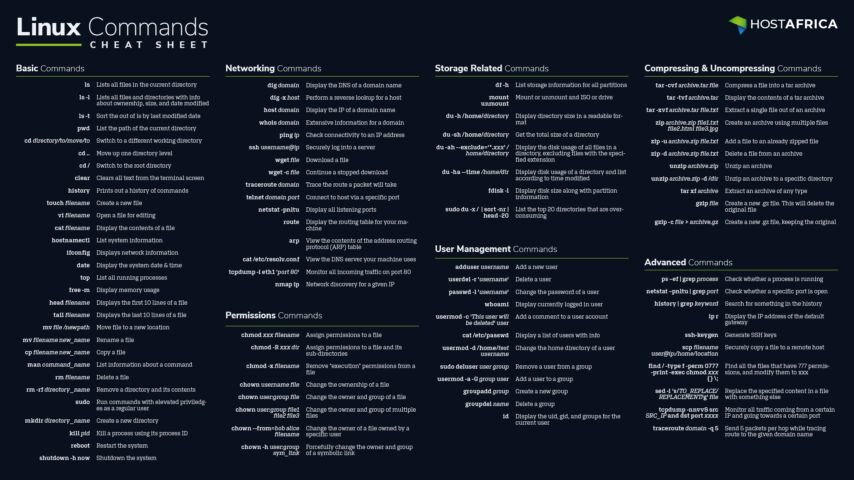
If you have ever stared at a black screen with a blinking cursor and felt completely lost, you are not alone. The Linux commands cheat sheet 2026 is exactly what you need to turn that intimidating terminal into your best friend. Whether you are switching from Windows, starting a coding bootcamp, or just curious about what all the hype is about, this guide will walk you through everything step by step. No fancy jargon, no assumptions that you already know what a “kernel” is. Just plain, practical advice that works.
Why Bother Learning Linux Terminal Basics for Beginners?
Let us be real for a second. You can absolutely use Linux without ever touching the terminal. Modern distros like Ubuntu and Linux Mint come with beautiful graphical interfaces that feel just like Windows or macOS. So why do people keep insisting you learn the command line?
Here is the thing. The terminal is faster. Way faster. Imagine you need to rename 500 photos from vacation. In a graphical file manager, that is hours of right-clicking and typing. In the terminal? One command, done in seconds. Plus, if you ever want to work in tech, cloud computing, cybersecurity, or web development, employers expect you to know your way around a Linux command line tutorial.
The good news is that Linux terminal basics for beginners are not nearly as scary as they look. You do not need to memorize hundreds of commands. In fact, most daily tasks only require about 20 to 30 commands total. Think of it like learning to drive. At first, everything feels overwhelming, but soon it becomes second nature.
Getting Started, Opening Your First Terminal
Before we dive into the actual Linux commands cheat sheet 2026, let us make sure you know how to open a terminal. This part varies slightly depending on which Linux distribution you are using.
- Ubuntu and Linux Mint: Press
Ctrl + Alt + Ton your keyboard. That is it. The terminal pops right up. - Fedora: Same shortcut,
Ctrl + Alt + T. - If you are on Windows but want to practice: Install Windows Subsystem for Linux, or WSL for short. It lets you run a real Linux environment inside Windows. Just search “WSL install” in your start menu and follow the prompts.
Once your terminal is open, you will see something like user@computer:~$. That is your prompt. The ~ symbol means you are currently in your home directory, which is basically your personal folder on the computer.
Essential Navigation Commands, Finding Your Way Around
The first skill you need is navigation. Think of the Linux file system like a big tree with branches. The very top is called the root directory, and it is represented by a single forward slash /. Everything else branches out from there.
Here are the Linux navigation commands you will use every single day:
| Command | What It Does | Real Example |
|---|---|---|
pwd | Shows where you currently are | pwd might output /home/yourname/Documents |
ls | Lists files and folders in your current spot | ls shows everything visible |
ls -la | Lists everything including hidden files, with details | ls -la shows permissions, sizes, dates |
cd | Changes to a different directory | cd Downloads moves you into Downloads |
cd .. | Goes up one level to the parent directory | If you are in Downloads, this takes you back to home |
cd ~ | Instantly jumps back to your home directory | Works from anywhere |
cd - | Takes you back to wherever you were previously | Super handy when you bounce between two folders |
Let me explain pwd because it confuses people at first. It stands for “print working directory,” which is just a fancy way of saying “tell me where I am.” When you first open a terminal, you are usually in /home/yourusername. If you run cd Documents and then run pwd, it will show /home/yourusername/Documents.
The ls command has tons of useful options. ls -la is the power user version. The -l flag gives you a detailed list showing file sizes, dates, and permissions. The -a flag shows hidden files, which are files that start with a dot. These are usually configuration files that normal users do not need to see, but they are important.
File and Folder Management, Creating, Moving, and Deleting Stuff
Now that you can move around, let us talk about actually doing things with files. This is where the Linux commands cheat sheet 2026 really starts to shine.
1. Creating Files and Folders
mkdir foldername– Creates a new folder. Simple.mkdir -p project/src/main– Creates nested folders all at once. The-pflag means “create parent directories if they do not exist.” This saves you from running three separate mkdir commands.touch filename.txt– Creates an empty file instantly. You can create multiple files at once liketouch file1.txt file2.txt file3.txt.
2. Copying and Moving
cp original.txt backup.txt– Copies a file.cp -r myfolder/ backup/– Copies an entire folder and everything inside it. The-rmeans “recursive,” which is just tech speak for “and all the stuff inside too.”mv oldname.txt newname.txt– Renames a file. Yes, the same command moves files too.mv file.txt ~/Documents/– Moves a file to your Documents folder.
3. Deleting Things (Be Careful Here!)
rm file.txt– Deletes a file permanently. There is no recycle bin. Gone means gone.rm -r foldername– Deletes a folder and everything inside it.rm -i file.txt– The-iflag makes it ask you “are you sure?” before deleting. Use this when you are nervous.
Important warning: Never run
rm -rf /. Therfcombination means “force delete recursively,” and the slash means “starting from the root of the entire system.” This will destroy your operating system. It is the Linux equivalent of setting your house on fire to light a candle. Just do not do it.
Viewing and Searching Files, Reading Without Opening a Text Editor
Sometimes you just want to quickly peek inside a file without launching a full editor. These commands are perfect for that.
| Command | What It Does | When to Use It |
|---|---|---|
cat file.txt | Shows the entire file content at once | For small files that fit on one screen |
less bigfile.txt | Lets you scroll through a file page by page | For large files, press Q to quit |
head -n 20 file.txt | Shows only the first 20 lines | To check the beginning of a log file |
tail -n 50 file.txt | Shows only the last 50 lines | To see recent entries in a log |
tail -f app.log | Shows new lines as they are added in real time | For watching live logs while an app runs |
grep "error" file.txt | Searches for the word “error” inside a file | Finding specific text quickly |
grep -r "TODO" src/ | Searches for “TODO” in all files inside the src folder | Code cleanup and project management |
The grep command is especially powerful. It searches for patterns inside text files. If you are a developer, you will use this constantly. The -r flag means “recursive search,” so it digs through all subfolders too. The -i flag makes it case-insensitive, so searching for “error” will also find “ERROR” and “Error.”
Linux File Permissions Explained, Who Can Do What?
This is the part where most beginners start to panic, but Linux file permissions explained simply is actually straightforward once you get the logic.
Linux controls access to files using three permission types for three different groups of people. Think of it like a nightclub with a VIP section.
1. The Three Permission Types
- Read (r) – You can look at the file contents or list what is inside a folder.
- Write (w) – You can modify the file or add, remove, and rename things inside a folder.
- Execute (x) – You can run the file as a program, or enter a directory and access its contents.
2. The Three Groups of People
- Owner – The person who created the file. Usually you.
- Group – A team of users who share access. Think of it like a department at work.
- Others – Everyone else on the system who is not the owner or in the group.
3. How to Read Permission Strings
When you run ls -l, you will see something like -rw-r--r-- 1 user group 1234 Jan 15 10:30 file.txt. Let us break that down.
The first character tells you the file type. A dash - means it is a regular file. A d means it is a directory. The next nine characters are the permissions, in groups of three.
rw-means the owner can read and write, but not execute.r--means the group can only read.r--means everyone else can only read.
So -rw-r--r-- translates to: the owner has read and write access, while group members and others have read-only access.
4. Changing Permissions with chmod
The chmod command changes these permissions. You can use it in two ways.
a. Numeric mode uses numbers where read equals 4, write equals 2, and execute equals 1. You add them up for each group.
chmod 644 file.txt– Owner gets read and write (6), group gets read only (4), others get read only (4).chmod 755 script.sh– Owner gets full access (7), group and others get read and execute (5). This is the standard permission for scripts and programs.chmod 777 file.txt– Everyone gets full access. Avoid this. It is like leaving your front door wide open with a sign saying “free stuff inside.”
b. Symbolic mode uses letters and plus or minus signs.
chmod u+x script.sh– Adds execute permission for the user (owner).chmod g-w file.txt– Removes write permission for the group.chmod o+r file.txt– Adds read permission for others.
5. Changing Ownership with chown
Sometimes you need to change who owns a file. This usually requires administrator privileges.
sudo chown newuser file.txt– Changes the owner to newuser.sudo chown newuser:newgroup file.txt– Changes both owner and group at once.sudo chown -R www-data:www-data /var/www/– Recursively changes ownership of a whole website folder. Web servers often run as thewww-datauser, so this makes sure the server can read your website files.
Bash Scripting for Beginners, Automating the Boring Stuff
Once you are comfortable with individual commands, the next logical step is bash scripting for beginners. A bash script is basically a text file containing multiple commands that you can run all at once. It is like creating a recipe that the computer follows automatically.
1. Your First Script
Open your terminal and type nano hello.sh. This opens a simple text editor called nano. Type these lines:
#!/bin/bash
echo "Hello, World!"
echo "Today is $(date)"
The first line #!/bin/bash is called a shebang. It tells the system which program should run this script. Think of it like telling someone which language a letter is written in.
Save the file by pressing Ctrl + O, then Enter, then Ctrl + X to exit. Now make it executable with chmod +x hello.sh. Finally, run it with ./hello.sh. You should see your greeting and the current date.
2. Variables in Bash
Variables let you store information to use later. No spaces around the equals sign. That trips up everyone at first.
#!/bin/bash
name="Alex"
echo "Welcome, $name!"
To use a variable, put a dollar sign in front of its name. So $name becomes “Alex” when the script runs.
3. Getting User Input
#!/bin/bash
echo "What is your favorite color?"
read color
echo "Nice, $color is a great choice!"
The read command pauses and waits for the user to type something, then stores it in the variable you specify.
4. Conditional Statements
Scripts get really powerful when they can make decisions.
#!/bin/bash
echo "Enter a number:"
read num

if [ $num -gt 10 ]; then
    echo "That is bigger than 10!"
elif [ $num -eq 10 ]; then
    echo "Exactly 10!"
else
    echo "That is less than 10."
fi
The -gt means “greater than,” -eq means “equal to,” and -lt means “less than.” The fi at the end closes the if statement. Yes, it is just “if” spelled backwards, which is weird but you get used to it.
5. Loops, Doing Things Over and Over
#!/bin/bash
for i in 1 2 3 4 5
do
    echo "Counting: $i"
done
Or use a range shortcut:
#!/bin/bash
for i in {1..10}
do
    echo "Number $i"
done
Loops are incredibly useful for batch processing files, renaming things in bulk, or running the same check on multiple servers.
System Monitoring and Process Management
As you get more comfortable, you will want to know what your computer is actually doing. These Linux system monitoring commands are essential.
| Command | What It Shows You |
|---|---|
top | A live, updating view of all running processes and resource usage. Press Q to quit. |
htop | An improved version of top with colors and better navigation. You might need to install it first with sudo apt install htop. |
ps aux | Lists all processes currently running. |
ps aux | grep firefox | Finds just the Firefox process among all running programs. |
kill 1234 | Stops the process with ID 1234. Use this when a program freezes. |
pkill -f "program name" | Kills a process by its name instead of its ID number. |
df -h | Shows how much disk space you have left, in human-readable format. |
du -sh * | Shows how much space each item in your current folder uses. |
free -h | Shows memory (RAM) usage. |
uptime | Shows how long your computer has been running and how busy it has been. |
The top command is like Task Manager for Linux. It shows you which programs are using the most CPU and memory. If something is frozen or eating all your resources, you can find its process ID (PID) here and kill it.
The pipe symbol | is one of the most powerful concepts in Linux. It takes the output of one command and feeds it into another. ps aux | grep firefox means “show me all processes, then filter that list to only show lines containing firefox.” This is how you chain simple commands together to do complex things.
Linux Package Manager Guide, Installing and Updating Software
Different Linux distributions use different package managers. Think of a package manager like an app store, but for the command line. It handles downloading, installing, updating, and removing software for you.
1. Debian and Ubuntu (apt)
sudo apt update          # Updates the list of available software
sudo apt upgrade -y      # Upgrades all installed software to newest versions
sudo apt install nginx   # Installs the Nginx web server
sudo apt remove nginx    # Removes Nginx
apt search keyword       # Searches for software matching a keyword
2. Fedora, RHEL, CentOS, Rocky Linux (dnf)
sudo dnf update -y       # Updates everything
sudo dnf install nginx   # Installs Nginx
sudo dnf remove nginx    # Removes Nginx
3. Arch and Manjaro (pacman)
sudo pacman -Syu         # Updates the system
sudo pacman -S nginx     # Installs Nginx
sudo pacman -R nginx     # Removes Nginx
Always run sudo apt update or sudo dnf update before installing new software. This makes sure you are getting the latest versions and security patches.
Networking and Remote Access Commands
If you manage servers or work remotely, these commands are indispensable.
| Command | Purpose | Example |
|---|---|---|
ip a | Shows your network interfaces and IP addresses | ip a |
ping -c 4 google.com | Tests if you can reach a website, sends 4 packets | ping -c 4 google.com |
curl -I https://example.com | Fetches just the headers from a website | Checks if a site is responding |
wget https://example.com/file.zip | Downloads a file from the internet | wget URL |
ssh user@server-ip | Connects to a remote server securely | ssh admin@192.168.1.100 |
scp file.txt user@server:/path/ | Copies a file to a remote server | scp report.pdf admin@server:/home/admin/ |
ss -tulpen | Shows all listening network ports and what services are using them | sudo ss -tulpen |
SSH stands for Secure Shell, and it is how professionals remotely manage servers all over the world. Once you connect via SSH, it is just like sitting in front of that computer’s terminal, even if the server is thousands of miles away.
Services and Logs, Keeping Things Running Smoothly
Modern Linux uses systemctl to manage services, which are programs that run in the background.
sudo systemctl status nginx     # Checks if the Nginx web server is running
sudo systemctl start nginx      # Starts it if it is stopped
sudo systemctl stop nginx       # Stops it
sudo systemctl restart nginx    # Restarts it (useful after config changes)
sudo systemctl enable nginx     # Makes it start automatically when the computer boots
For checking logs, which are records of what programs have been doing:
sudo journalctl -u nginx --since "1 hour ago"   # Shows Nginx logs from the last hour
tail -f /var/log/syslog                         # Watches system logs in real time
tail -f /var/log/nginx/error.log                # Watches web server error logs
Logs are your best friend when something breaks. They tell you exactly what went wrong and when.
Keyboard Shortcuts and Pro Tips
Master these shortcuts and you will look like a wizard.
| Shortcut | What It Does |
|---|---|
Tab | Auto-completes file names and commands. Press it twice to see all options. |
Up Arrow / Down Arrow | Cycles through your command history. No need to retype long commands. |
Ctrl + C | Cancels whatever is currently running. Your “emergency stop” button. |
Ctrl + L | Clears the screen. Same as typing clear but faster. |
Ctrl + R | Searches through your command history interactively. Start typing and it finds matches. |
Ctrl + A | Jumps to the beginning of the current line. |
Ctrl + E | Jumps to the end of the current line. |
!! | Repeats the last command. Great for when you forgot to type sudo. Just run sudo !! |
Practical Scenarios for Beginners
Let us put this Linux commands cheat sheet 2026 into action with some real-world examples.
1. You Just Connected to a Remote Server
ssh admin@your-server-ip
df -h                    # Check disk space
free -h                  # Check memory
uptime                   # See how long it has been running
2. Deploying a Website
scp -r my-website/ admin@server:/var/www/html/
sudo chown -R www-data:www-data /var/www/html/
sudo systemctl reload nginx
3. Finding and Killing a Frozen Program
ps aux | grep "frozen-app"
kill 12345               # Replace 12345 with the actual process ID
4. Backing Up a Project
tar -czf project-backup-$(date +%F).tar.gz /home/user/myprojectThe $(date +%F) part automatically adds today’s date to the filename, so your backups are always organized.
Frequently Asked Questions
The Linux commands cheat sheet 2026 covers a lot of ground, but beginners often have specific questions that do not quite fit into the main sections. Below are the most common questions we see in forums, Reddit threads, and Discord communities from people who are just starting their Linux journey.
1. What is the fastest way to learn Linux commands?
The fastest way is hands-on practice. Set up a Linux virtual machine or use WSL on Windows, then force yourself to do everyday tasks through the terminal instead of the graphical interface. Create folders, move files, edit text, and browse the web using only commands. Within a week, the basics will feel natural. Follow a structured Linux command line tutorial and practice for at least 30 minutes daily.
2. Why do I need to know Linux file permissions explained if I am the only user?
Even if you are the only human user, your system runs dozens of services and programs under different user accounts. Web servers run as www-data, databases as their own users, and system services as specialized accounts. Proper permissions prevent a hacked web server from accessing your personal documents or deleting system files. Understanding Linux file permissions explained is fundamental to keeping your system secure.
3. Is bash scripting for beginners really necessary, or can I skip it?
You can absolutely use Linux without ever writing a script. However, bash scripting for beginners becomes essential once you start doing repetitive tasks. If you find yourself typing the same five commands every morning, a 30-second script will save you hours over a year. It is also a valuable skill that appears in job listings for developers, system administrators, and DevOps engineers. Start small, automate one boring task, and you will quickly see the value.
Conclusion
Learning the Linux commands cheat sheet 2026 is one of the best investments you can make for your tech skills. The terminal is not just for hackers in movies. It is a practical, efficient tool that saves time, gives you deeper control over your computer, and opens doors to careers in development, system administration, cloud computing, and cybersecurity.
Start with the basics. Navigate folders, create and delete files, and practice changing permissions. Then move into bash scripting for beginners to automate your workflow. Before you know it, you will be the person your friends call when they need help with a server. Keep this guide bookmarked, practice daily, and remember that every Linux expert started exactly where you are right now.