Windows 11 Snap Layouts Not Working? Here Is How to Fix It Fast and Get Your Productivity Back!

If your Windows 11 snap layouts not working anymore, you are not alone. This is one of the most annoying little glitches in Windows 11 because snap layouts are genuinely useful for multitasking. One day you hover over the maximize button and that neat grid of layout options pops up. The next day, nothing happens. No hover menu, no snapping, no split screen magic. It is frustrating, especially when you are in the middle of work and just want to arrange two windows side by side without manually resizing everything.
The good news is that this problem is usually fixable in just a few minutes. In this guide, I will walk you through every possible cause and solution, from the simplest toggle switches all the way to registry tweaks. I will also throw in some bonus tips about Windows 11 keyboard shortcuts snap and Windows 11 multitasking settings so you can work faster once everything is working again.
What Are Snap Layouts and Why Do They Break?
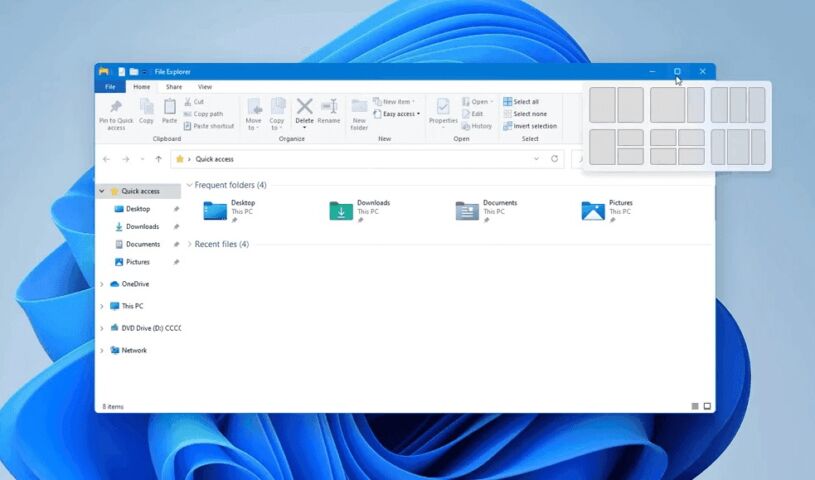
Snap layouts are those little grid icons that appear when you hover over the maximize button on any window in Windows 11. They let you snap windows into predefined arrangements like side-by-side, three-column, or four-quadrant layouts. Snap assist then suggests open apps to fill the remaining spaces.
Think of it like having a digital assistant that arranges your desktop for you. When it works, it is beautiful. When it breaks, your desktop turns into a chaotic mess of overlapping windows.
So why does snap assist not showing happen? Here are the most common culprits:
- The snap windows toggle got turned off somehow
- A third-party tool like DisplayFusion is interfering
- Registry settings got corrupted or changed
- A recent Windows update introduced a bug
- Multi-monitor setups confuse the snap layout detection
According to Windows Central, Microsoft has been actively updating the snap and multitasking experience in recent builds, including improvements to the Taskbar with relocation support . But with all these updates, sometimes things break.
Quick Fixes You Should Try First
Before diving into the deep stuff, try these super quick fixes. Most of the time, one of these solves the problem in under 60 seconds.
1. Check If Snap Windows Is Turned On
This sounds obvious, but it is the number one reason Windows 11 split screen not working.
- Press Win + I to open Settings
- Click System on the left
- Scroll down and click Multitasking
- Make sure Snap windows is toggled On
If it was off, turn it on and test immediately. Hover over any window’s maximize button. The layout menu should pop up.
2. Restart Windows Explorer
Sometimes the Windows shell just needs a quick refresh.
- Press Ctrl + Shift + Esc to open Task Manager
- Find Windows Explorer in the list
- Right-click it and select Restart
Your taskbar will flicker for a second, then come back. Test snap layouts again.
3. Try the Keyboard Shortcut Instead
Even if the hover menu is broken, keyboard shortcuts might still work. Press Win + Z while a window is active. This should bring up the snap layout menu directly. If this works but the hover menu does not, you know the feature itself is fine and the issue is specifically with the hover detection.
Fix Snap Layouts with Registry Tweaks
If the quick fixes did not work, it is time to dig into the registry. Do not worry, I will make this as simple as possible. The registry is basically Windows’ instruction manual. Sometimes a setting there gets flipped the wrong way.
1. Enable Snap Assist Flyout in Registry
This is the most reliable fix when Windows 11 maximize button hover menu refuses to appear.
- Press Win + R, type
regedit, and press Enter - Copy and paste this path into the address bar at the top:
Computer\HKEY_CURRENT_USER\Software\Microsoft\Windows\CurrentVersion\Explorer\Advanced- Right-click in the right panel, choose New > DWORD (32-bit) Value
- Name it exactly:
EnableSnapAssistFlyout - Double-click it and set the Value data to
1 - Click OK and restart your computer
After rebooting, hover over the maximize button. The snap layout menu should be back.
Important: If you are not comfortable editing the registry, create a system restore point first. Go to Control Panel > System > System Protection > Create. This gives you a safety net.
Fix Snap Layouts on Multi-Monitor Setups
If you use multiple monitors and Windows 11 snap groups missing on your secondary display, a third-party tool might be the problem.
According to DisplayFusion’s support forums, their multi-monitor taskbar feature can interfere with snap layouts on secondary monitors . The workaround is to change the taskbar mode setting in DisplayFusion to “Windows taskbar shows all windows, DisplayFusion shows relevant windows.”
If you do not use DisplayFusion but still have issues on multiple monitors, try this:
- Disconnect your secondary monitor temporarily
- Test snap layouts on your main screen
- If they work, reconnect the monitor and check your display settings
- Go to Settings > System > Display and make sure your monitors are arranged correctly
Sometimes Windows gets confused about which monitor is which, and snap layouts break as a result.
What If a Windows Update Broke It?
Microsoft releases updates every month, and occasionally one breaks something. If your snap layouts stopped working right after an update, here is what to do.
1. Check for a Newer Update
Microsoft often releases out-of-band fixes for bugs they introduce. For example, after the March 2026 update KB5079473 caused Microsoft account sign-in issues, Microsoft pushed KB5085516 to fix it . The same pattern applies to other bugs.
- Go to Settings > Windows Update
- Click Check for updates
- Install any available updates and restart
2. Roll Back the Problematic Update
If no fix is available yet and the issue started after a specific update:
- Go to Settings > Windows Update > Update history
- Click Uninstall updates
- Find the most recent update and uninstall it
- Restart your PC
Then pause updates for a few days until Microsoft releases a patch. According to Windows Central, the April 2026 update introduced a new calendar control for pausing updates, letting you pause for up to 35 days and extend it unlimited times .
Advanced Troubleshooting
If nothing above worked, try these deeper fixes.
1. Run System File Checker
Corrupted system files can break Windows features.
- Right-click the Start button and select Terminal (Admin)
- Type
sfc /scannowand press Enter - Wait for it to finish (this can take 10-15 minutes)
- If it finds problems, run
DISM /Online /Cleanup-Image /RestoreHealth - Restart your PC
2. Check Group Policy (Pro/Enterprise Users)
If you are on a work or school PC, your IT department might have disabled snap layouts via Group Policy.
- Press Win + R, type
gpedit.msc, and press Enter - Navigate to:
Computer Configuration > Administrative Templates > Windows Components > Microsoft Edge- Look for any policies related to window management or multitasking
- If you find anything suspicious, set it to Not Configured
On Windows Home, you do not have Group Policy Editor, so this step does not apply.
Bonus: Master These Windows 11 Snap Shortcuts
Once your snap layouts are working again, speed up your workflow with these keyboard shortcuts. They are faster than clicking anyway.
| Shortcut | What It Does |
|---|---|
| Win + Z | Opens snap layout menu for active window |
| Win + Left Arrow | Snaps window to left half of screen |
| Win + Right Arrow | Snaps window to right half of screen |
| Win + Up Arrow | Maximizes window or snaps to top |
| Win + Down Arrow | Minimizes window or unsnaps |
| Win + Left/Right + Up/Down | Snaps to corners (quarter screen) |
These Windows 11 keyboard shortcuts snap combos work on single and multi-monitor setups. Once you memorize them, you will barely need the mouse hover menu at all.
Prevent Snap Layouts From Breaking Again
Here are some habits to keep snap layouts running smoothly long-term.
1. Keep Windows Updated
I know, updates sometimes break things. But outdated systems break more often. Microsoft is actively improving the snap and multitasking experience in newer builds . Staying current means you get the fixes.
2. Be Careful With Third-Party Tools
Tools that modify the taskbar, window management, or multi-monitor behavior can conflict with snap layouts. If you install something like DisplayFusion, Start11, or similar utilities, test snap layouts immediately. If they break, you know the culprit.
3. Do Not Clean the Registry Blindly
Those “registry cleaner” apps often do more harm than good. They delete keys that Windows actually needs, including ones related to snap layouts. If you must use one, create a backup first.
Frequently Asked Questions
Got questions? You are not the only one. These are the most common things people ask about when their Windows 11 snap layouts not working and they are trying to figure out what went wrong. I have answered them in plain English so you do not have to dig through forums for hours.
1. Why did my snap layouts suddenly stop working after a Windows update?
Windows updates sometimes overwrite or reset certain settings. Microsoft has acknowledged various post-update issues, including sign-in bugs and feature glitches . The fix is usually to check for a newer update, reinstall the feature via settings, or use the registry tweak mentioned above.
2. Can I use snap layouts on multiple monitors?
Yes, snap layouts work on multiple monitors. However, some third-party multi-monitor tools can interfere with the feature on secondary displays . If you experience issues, try adjusting the tool’s taskbar settings or temporarily disabling it.
3. What is the difference between snap layouts and snap assist?
Snap layouts are the grid menu that appears when you hover over the maximize button. Snap assist is the feature that suggests open apps to fill the remaining spaces after you snap one window. They work together but are technically separate features. If snap assist is not showing app suggestions, make sure you have at least two apps open.
Conclusion
Having your Windows 11 snap layouts not working is annoying, but it is almost always fixable. Start with the simple stuff like checking the toggle in Windows 11 multitasking settings and restarting Explorer. If that fails, the registry tweak with EnableSnapAssistFlyout has a near-perfect success rate. For multi-monitor users, check your third-party tools. And if a Windows update caused it, either wait for the next patch or roll back temporarily.
Once everything is working, practice those keyboard shortcuts. They are faster than the mouse and work even when the hover menu is being temperamental. Happy snapping!